1
2
3
4
5
6
7
8
9
10
11
12
13
14
15
16
17
18
19
20
21
22
23
24
25
26
27
28
29
30
31
32
33
34
35
36
37
38
39
40
41
42
43
44
45
46
47
48
49
50
51
52
53
54
55
56
57
58
59
60
61
62
63
64
65
66
67
68
69
70
71
72
73
74
75
76
77
78
79
80
81
82
83
84
85
86
87
88
89
90
91
92
93
94
95
96
97
98
99
100
101
102
103
104
105
106
107
108
109
110
111
112
113
114
115
116
117
118
119
120
121
122
123
124
125
126
127
128
129
130
131
132
133
134
135
136
137
138
139
140
141
142
143
144
145
146
147
148
149
150
151
152
153
154
155
156
157
158
159
160
161
162
163
164
165
166
167
168
169
170
171
172
173
174
175
176
177
178
179
180
181
182
183
184
185
186
187
188
189
190
191
192
193
194---
title: Use the web app
date: 2026-04-21
author: Equalify Tech Team
description: Upload, review, and download accessible documents through the Equalify Reflow web app at reflow.equalify.uic.edu.
---
# Use the web app
The Equalify Reflow web app lets anyone with access to a running instance convert a PDF into accessible markdown from a browser. No installation, no command line, no API integration. The web app walks each document through the same pipeline the WordPress plugin and API use, and surfaces every phase — including the PII review gate — in the UI.
For a narrative first-time walkthrough, see [process your first PDF with the web app](../tutorials/process-your-first-pdf-with-the-web-app). This page is the task reference for day-to-day use.
## Access
The UIC-hosted web app is at `https://reflow.equalify.uic.edu/`. Open it in a browser — there's no sign-in, no API key to paste, and nothing to install. The upload screen is the landing page.
The service is protected by server-side rate limits rather than authentication, so a single IP can't overwhelm it and the total cost per day is bounded. See [limits](#limits) below for the exact numbers.
Organisations running their own instance reach the web app at the root of their deployed URL.
## Upload a document
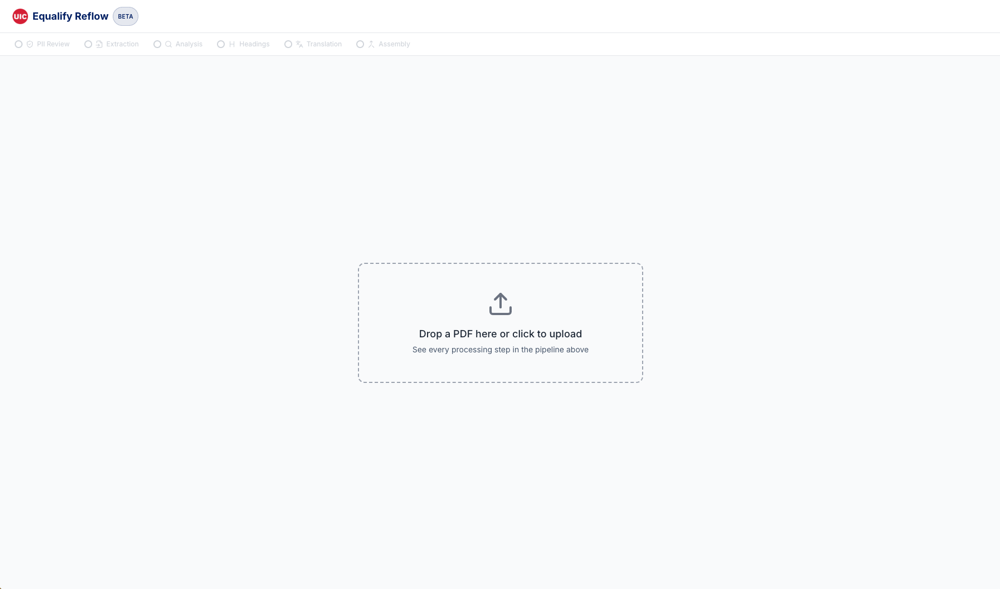
*The landing page. Pipeline stages sit above the drop zone — they'll light up in order once a PDF is uploaded.*
From the upload screen you can:
- **Drag and drop** a PDF onto the dashed drop zone.
- **Click** the drop zone to open a file picker.
- **Keyboard**: tab to the drop zone, then press **Enter** or **Space** to open the file picker.
Only PDFs are accepted. The server enforces two limits that matter:
- **Maximum file size:** 100 MB.
- **Maximum page count:** 50 pages. Longer documents are rejected at the classification step with an "Unsupported Document" error.
Both limits are defaults; if your instance has been tuned differently, the server will tell you during upload.
## The working layout
Once processing begins, the web app opens into a four-area layout — a row of pipeline stage tabs across the top, a stats bar with run metrics and action buttons, a side-by-side page image and rendered markdown in the middle, and a changes or metadata panel on the right.
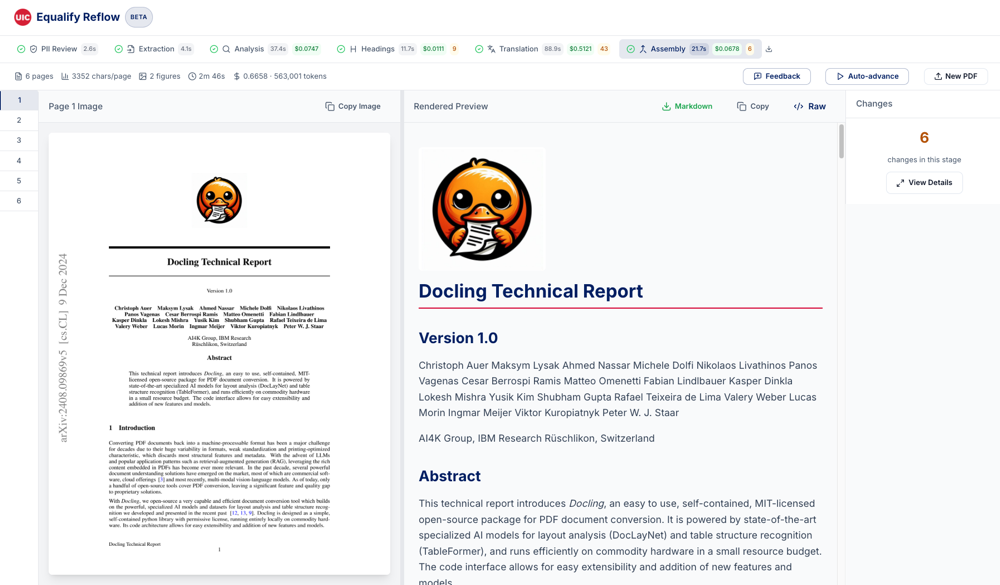
*A completed run showing the working layout with stage tabs, stats bar, split page-and-markdown view, and changes panel.*
### Stage tabs
The top row shows the five public phases — **Extraction, Analysis, Headings, Translation, Assembly** — plus a PII Review tab that activates when the pipeline is paused at the human approval gate. Each tab shows a spinner while its stage is running, a green checkmark on success, an amber icon when a stage was skipped, and a red icon when a stage errored non-fatally.
Click any tab to see that phase's output in the rendered preview. By default **auto-advance** is on, so the selected tab jumps to the newest phase as the pipeline progresses. The toggle lives in the stats bar if you want to pause and dwell on an earlier phase.
### Page sidebar
Lists every page in the document. Click a number to jump to that page. The current page is highlighted with a blue left border. The sidebar only appears for multi-page documents.
### Page image + rendered markdown (split view)
- **Left panel:** the original PDF page as a rendered image. The **Copy Image** button in the top-right of this panel copies the PNG to your clipboard.
- **Right panel:** the current phase's markdown for this page, rendered as accessible HTML. Toolbar buttons let you copy the markdown or download the full-document version for this phase.
- **Drag the divider** between the two panels to resize.
### Changes sidebar
Shows how many edits the AI made in the currently selected phase. Click **View Details** to open a modal listing every change with its before, after, and the AI's reasoning — useful for accessibility audits and for understanding why a particular edit was made.
### Structure / metadata panel
On the **Analysis** tab, the changes sidebar is replaced by a **structure metadata** panel showing:
- **Page Attributes** — layout type (single-column, double-column, presentation), and flags for images, tables, equations, scanned pages.
- **Outline** — every heading found with its level and page.
- **Code Blocks** — detected code blocks with language and first line.
- **Footnotes** — each footnote with its marker and source page.
Click the expand icon in the panel header to open the full dossier in a modal.
### Warnings banner
If the classifier flags something worth a reviewer's attention — scanned pages, unusually long text blocks, unusual layout — a yellow warnings banner appears above the stats bar. The pipeline still runs; the banner is a heads-up, not a failure. Dismiss it with the close button.
### Classification error screen
If the pipeline can't process the document at all — encrypted PDFs, AcroForm / XFA forms, empty files, or documents over the page limit — the upload is rejected with a dedicated error screen naming the specific problem. Click **Upload a Different PDF** to try again.
## The PII review phase
Before any AI processing begins, the web app scans the extracted text for PII patterns using Microsoft Presidio (emails, phone numbers, SSNs, credit card numbers, driver's licence numbers). Three things can happen:
- **No matches** — the PII tab shows a green "No sensitive information detected" message and the pipeline continues automatically.
- **Matches found** — the pipeline **pauses**. The PII panel lists findings grouped by type, with a reveal toggle so you can inspect specific matches. Choose **Continue anyway** to proceed or **Cancel processing** to abort. If you cancel, no document data is sent to the AI pipeline.
- **Scan failed** — the panel explains the error; the pipeline continues without a completed PII check and flags the document for your attention.
Reflow is designed for course materials only. Do not use it to process student records or documents with sensitive PII beyond incidental contact details.
## Download the output
From the rendered markdown panel's toolbar:
- **Download markdown** — the current stage's full-document markdown.
- **Copy markdown** — copy the current page's markdown to your clipboard.
From the stage tabs:
- **Per-stage download** — each completed stage exposes a download control for that stage's markdown (`v0` is Docling, `v1` is after Headings, and so on up to the Assembly version).
From the page image panel:
- **Copy Image** — copy the current PDF page as a PNG.
Figures extracted from the PDF are embedded inline in the rendered preview and inside the downloaded markdown as base64 data URIs, so a single markdown file travels with all its images — no separate figures folder to keep track of.
For the final accessible output, use the download control on the **Assembly** tab.
## Submitting feedback
When the pipeline completes and the instance has feedback enabled, a **Feedback** button appears in the stats bar. It opens a dialog where you can describe the issue:
- **Category** — Content, Formatting, Accessibility, Structure, or Other.
- **Description** — at least 10 characters; be as specific as you can.
- **Page** (optional) — which page the issue is on; defaults to the page you were viewing.
The web app automatically attaches the session identifier, document title, and the phase you had selected when you opened the dialog, so the report can be correlated with the run that produced it.
Reports are reviewed by the Equalify team and inform pipeline improvements.
If you spotted a specific text error, use the Description field to name the affected page and quote the before/after. For the wider feedback framing, see [provide feedback](../how-to/provide-feedback).
## Keyboard shortcuts
The web app is fully keyboard-navigable. The skip-navigation menu (top-left, activates on Tab) jumps you to the right region for whatever view you're on. Direct-jump shortcuts:
| Shortcut | Does |
|---|---|
| **Cmd / Ctrl + 0** | Open the skip-navigation menu |
| **Cmd / Ctrl + 1** | Jump to the page sidebar |
| **Cmd / Ctrl + 2** | Jump to the stage tabs |
| **Cmd / Ctrl + 3** | Jump to the rendered preview |
| **Cmd / Ctrl + 4** | Jump to the changes panel |
| **Cmd / Ctrl + /** | Open the shortcut help dialog inside the viewer |
All interactive controls (tabs, page buttons, drop zone, panel buttons) respond to **Enter** and **Space**. The drop zone accepts a keyboard-triggered drop — you can drop a PDF onto it while it has focus.
## Managing jobs
Each upload is a one-shot session in the UI. The web app doesn't offer a persistent library or job queue — the **New PDF** button in the stats bar resets to the upload screen, and the previous run isn't kept in the UI. If you need a library, the WordPress plugin manages processed documents as Media Library attachments; if you need programmatic access to past runs, see [integrate via the API](integrate-via-api).
## Limits
Because the web app has no sign-in, the instance is protected by per-document and per-IP limits. The UIC-hosted defaults are:
| Limit | Value | Window |
|---|---|---|
| File size per upload | 100 MB | per upload |
| Page count per upload | 50 pages | per upload |
| Submissions from a single IP | 10 | rolling 1 hour |
| Status checks from a single IP | 100 | rolling 1 hour |
| Submissions across the whole instance | 1000 | rolling 24 hours |
If you hit a limit, the web app surfaces an HTTP 429 response with a `Retry-After` value telling you when to try again. A browser refresh won't reset the counter — the limit is tracked per IP on the server. For the full list of endpoints and response shapes, see the [API reference](../reference/api).
## Troubleshooting
**Pipeline finishes suspiciously fast with no AI improvements**
The instance's AWS Bedrock or Anthropic credentials likely expired on the server. This is an instance-operator issue, not a user error — contact the team running the instance and ask them to refresh credentials.
**Progress appears stuck**
The web app uses a live-update connection (server-sent events) that can occasionally drop — for example, when a proxy or VPN closes idle connections. When that happens the app falls back to polling the status endpoint every few seconds. Wait 30 seconds before reloading; reloading mid-run loses the UI session.
**"Unsupported Document" error straight after extraction**
The classifier rejected the PDF. The error screen names the specific reason — typically one of:
- AcroForm or XFA form (interactive PDFs are outside scope)
- Encrypted PDF (remove the password and re-upload)
- Empty document
- Too many pages (over the 50-page limit)
**PII review panel won't clear**
The pipeline is waiting for your decision — click **Continue anyway** or **Cancel processing**. If you reload the page you lose the session; re-upload the PDF to start over.
**Document uploaded but no output**
Check the classification error screen — the pipeline may have rejected the PDF. If the stage tabs did start but stopped early, open **View Details** on the last-active stage to see any recorded error.
**Figures don't render in the preview**
Figures are embedded as base64 in the rendered preview. If they appear broken, try downloading the markdown and opening it in a markdown viewer — the file is self-contained.