Tutorial — Process your first PDF with the web app
Tutorial: Process your first PDF with the web app
By the end of this walkthrough you will have opened the Equalify Reflow web app at https://reflow.equalify.uic.edu/, converted a real PDF into an accessible document, approved (or cancelled) the PII review gate, and downloaded the accessible markdown. Plan for ~20 minutes, including reading time for the output.
The web app is the right path when you want to convert documents through a browser interface without writing code. For day-to-day reference on the web app's controls, see use the web app. This tutorial walks you through the path end-to-end; that page is the task reference after you're set up.
What you need
- A modern browser. Current Chrome, Firefox, Edge, or Safari. The viewer uses standard web APIs; nothing needs to be installed.
- The web app URL. The UIC-hosted instance is at
https://reflow.equalify.uic.edu/. There's no sign-in and no API key — open the URL and you're there. The service is protected by per-IP rate limits (see use the web app § limits) rather than authentication. - A PDF. Up to 100 MB and 50 pages. Course materials, slide decks, handouts, and articles are the intended scope. Scanned PDFs work — OCR runs automatically.
1. Open the web app
Point your browser at https://reflow.equalify.uic.edu/. You'll land directly on the upload screen — no login, nothing to configure. At the top you'll see the Equalify Reflow header with a Beta badge. Below it, a row of pipeline phase tabs (greyed out until a document is loaded) and a dashed drop zone in the middle of the page that says Drop a PDF here or click to upload.
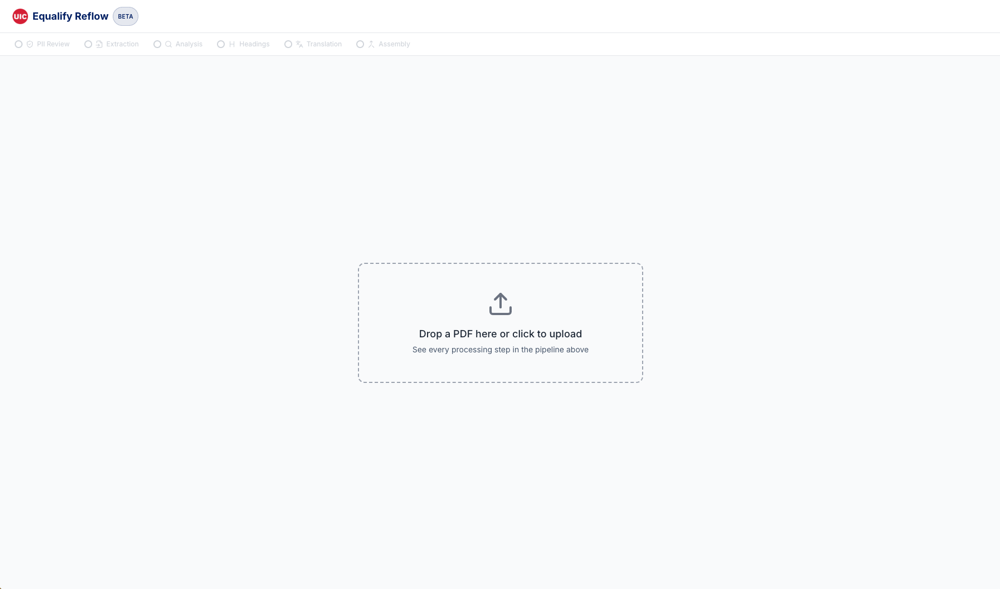
2. Upload a PDF
Three ways to start:
- Drag and drop a PDF from your file manager onto the drop zone.
- Click the drop zone to open a file picker.
- Keyboard: tab to the drop zone, then press Enter or Space to open the file picker.
3. Watch the pipeline run
The tab row at the top walks through five public phases, in order:
- Extraction — IBM Docling parses the PDF structure (and runs OCR if the document is scanned).
- Analysis — the pipeline classifies the document and builds a structure dossier.
- Headings — heading levels are inferred and reconciled across the document.
- Translation — each page is edited by a multimodal model to match what the visual page communicates.
- Assembly — per-page markdown is joined into a single document and page-break artefacts are removed.
Expected duration for a 6–10 page document: ~2–5 minutes. Longer documents scale roughly linearly.
4. Approve the PII review
Before any AI processing begins, the web app runs a PII (personally identifiable information) scan on the extracted text using Microsoft Presidio. If the scan finds anything that looks like an email address, phone number, SSN, credit card, or similar pattern, the pipeline pauses on the PII review panel and waits for a human decision.
On the PII panel you'll see:
- A list of findings grouped by type (Email address, Phone number, and so on) with counts.
- A Show matches / Mask matches toggle so you can reveal the specific strings that were flagged.
- Two buttons: Continue anyway and Cancel processing.
Reflow is designed for course materials only. If a document contains student records or sensitive PII beyond the occasional contact detail, cancel and handle it outside Reflow.
5. Review the output in the pipeline viewer
Once the pipeline finishes, the web app opens into its working layout:
- A page sidebar on the left listing every page (click a number to jump to it).
- A page image panel in the centre-left showing the original PDF page.
- A rendered markdown panel in the centre-right showing the converted, accessible version of the current page.
- A changes panel on the far right showing how many edits the AI made in the currently selected phase and a View Details button that opens every change with its before, after, and the AI's reasoning.
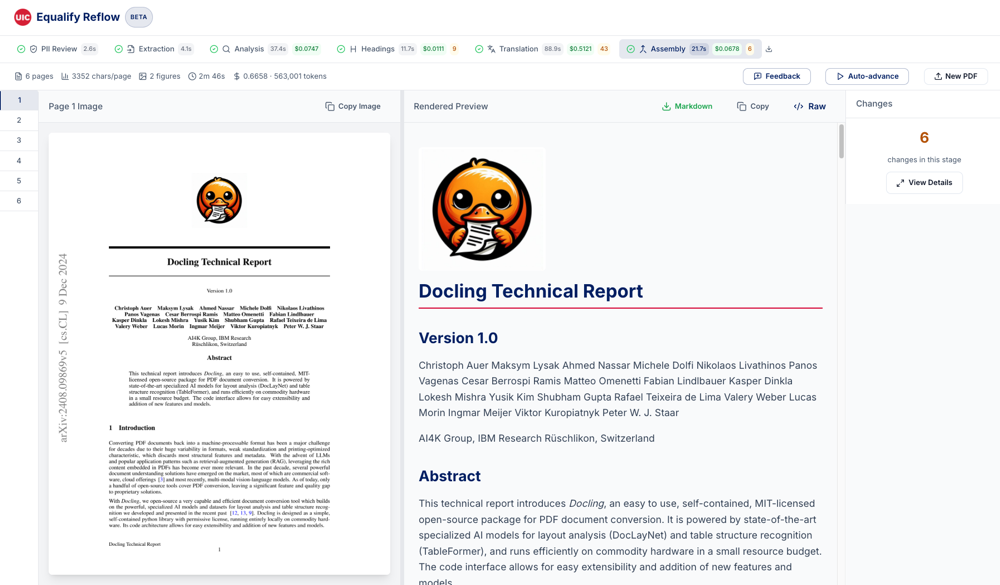
Click through each phase tab to see what that step produced. The Analysis tab is special — it replaces the changes panel with a structure metadata panel showing the document outline, page attributes, footnotes, and detected code blocks. This is the context every downstream phase uses to make decisions.
If anything about the document prompted a warning (scanned pages, unusual layout), a yellow warnings banner appears above the working area.
6. Do a quick accessibility review
The single most valuable quality check is the heading outline. On the Analysis tab, scan the outline list: does the H1 match the document title, and are H2s the things you'd expect to be top-level sections? If the skeleton looks right, the rest of the output is usually solid. For the full reviewer checklist, see interpret the output.
7. Download the accessible output
From the rendered markdown panel's toolbar you can:
- Download markdown — the current stage's full-document markdown.
- Copy markdown — copy the current page's markdown to your clipboard.
- Copy page image — copy the current PDF page image as a PNG.
8. Leave feedback (optional)
When the pipeline completes and feedback is enabled on the instance, a Feedback button appears in the stats bar. Use it to report anything that looked wrong — incorrect text, broken tables, missing alt text, or a heading at the wrong level.
Reports are reviewed by the Equalify team and directly inform pipeline improvements. See provide feedback for the details on each category.
Troubleshooting
| Problem | First thing to try |
|---|---|
| Pipeline finishes in a few seconds with no AI improvements visible | The web app server's AWS Bedrock or Anthropic credentials likely expired. This is an instance-operator issue, not something you caused. Contact the team running the instance and ask them to refresh credentials. |
| Upload screen shows an "Unsupported Document" error straight after extraction | The PDF is an AcroForm or XFA form, encrypted, empty, or over the 50-page limit. The error panel names the specific reason. Upload a different PDF. |
| Stuck on the PII review panel | The pipeline is waiting for your decision. Click Continue anyway to proceed or Cancel processing to abort. If you've reloaded the page and lost the session, re-upload the PDF. |
| Progress bar appears frozen | The browser may have lost its live-progress connection. The web app falls back to polling the server; give it 30 seconds before reloading. |
| The output is missing a whole paragraph | Rare but possible on the first run. Click New PDF and re-upload — transient failures almost always clear on retry. |
Where to go next
- Use the web app — day-to-day reference for the web app's controls, phases, and feedback flow
- Interpret the output — the reviewer's 4-minute quality scan for a converted document
- Provide feedback — how to submit corrections and issue reports from the web app
- How it works — what the pipeline is actually doing during those five phases