Exploring the Dashboard
Edit on GitHubThis page is intended for all users to use the centralized Dashboard to monitor the status of digital accessibility.
We designed it to help you identify and track blockers across your experiences. Think of this page as a "health check" for your site's inclusivity. Below are the key sections you'll need to navigate.
Key areas of the interface
- Audit Title: View the specific project monitored, at the top of the page.
- Audit name: Descriptive title of your audit.
- Edit: Use the pencil icon to edit the name of your audit.
- Delete: The trash can icon lets you delete your entire audit.
- “Scan Now”: for a Manual Scan. If you’ve just made fixes, you can click Scan Now to refresh the data immediately.
- Share: Copy a link to this report to share.

Performance Chart and Snapshot
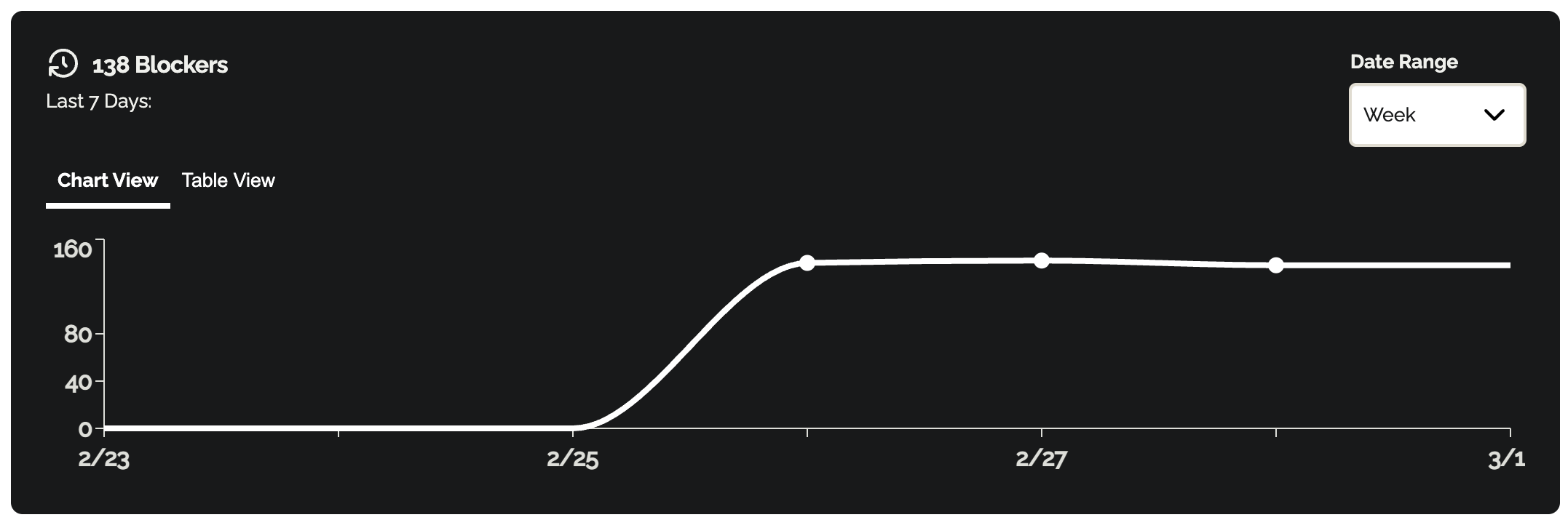
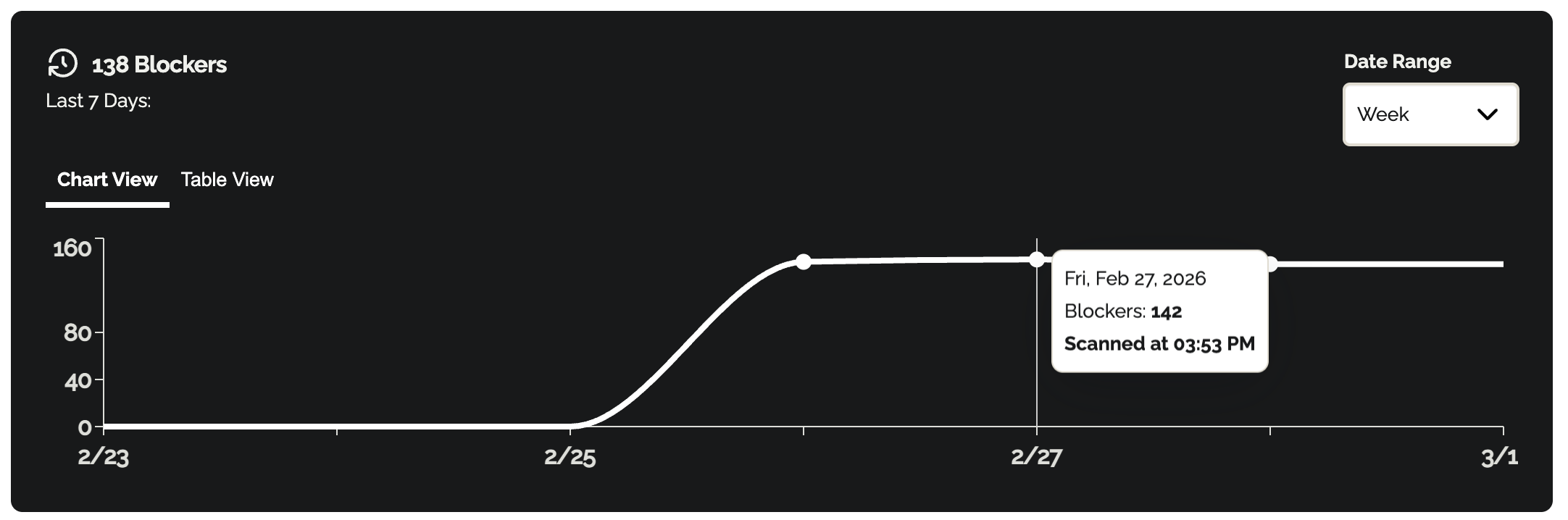
This section gives you an immediate look at the scale of accessibility issues.- Total Blockers: View the number of blockers the system detected across your monitored pages.
- Hover over the chart's datapoints to see details about each scan, including the scan date and the number of blockers.
- Toggle to Table View for an accessible way to review exact blocker counts by date.
Controls and Scheduling
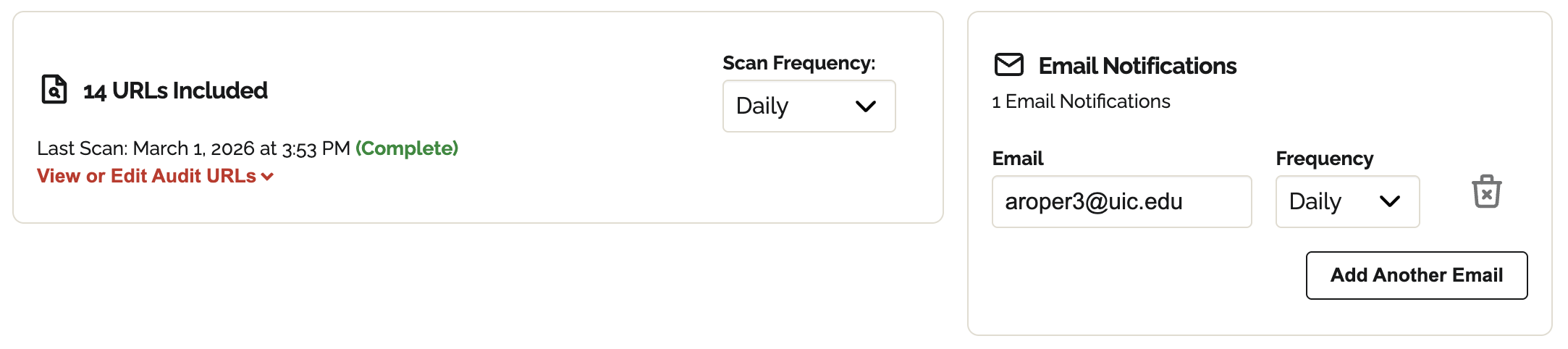
You can customize how often Equalify checks your site and who gets notified when results are ready.- Scan Frequency: Can be updated to Manual, Daily, Weekly, or Monthly.
- Notifications: This list shows all email addresses that receive the reports. You can add more workspace members using the "Add Another Email" button.
Critical Data Tables
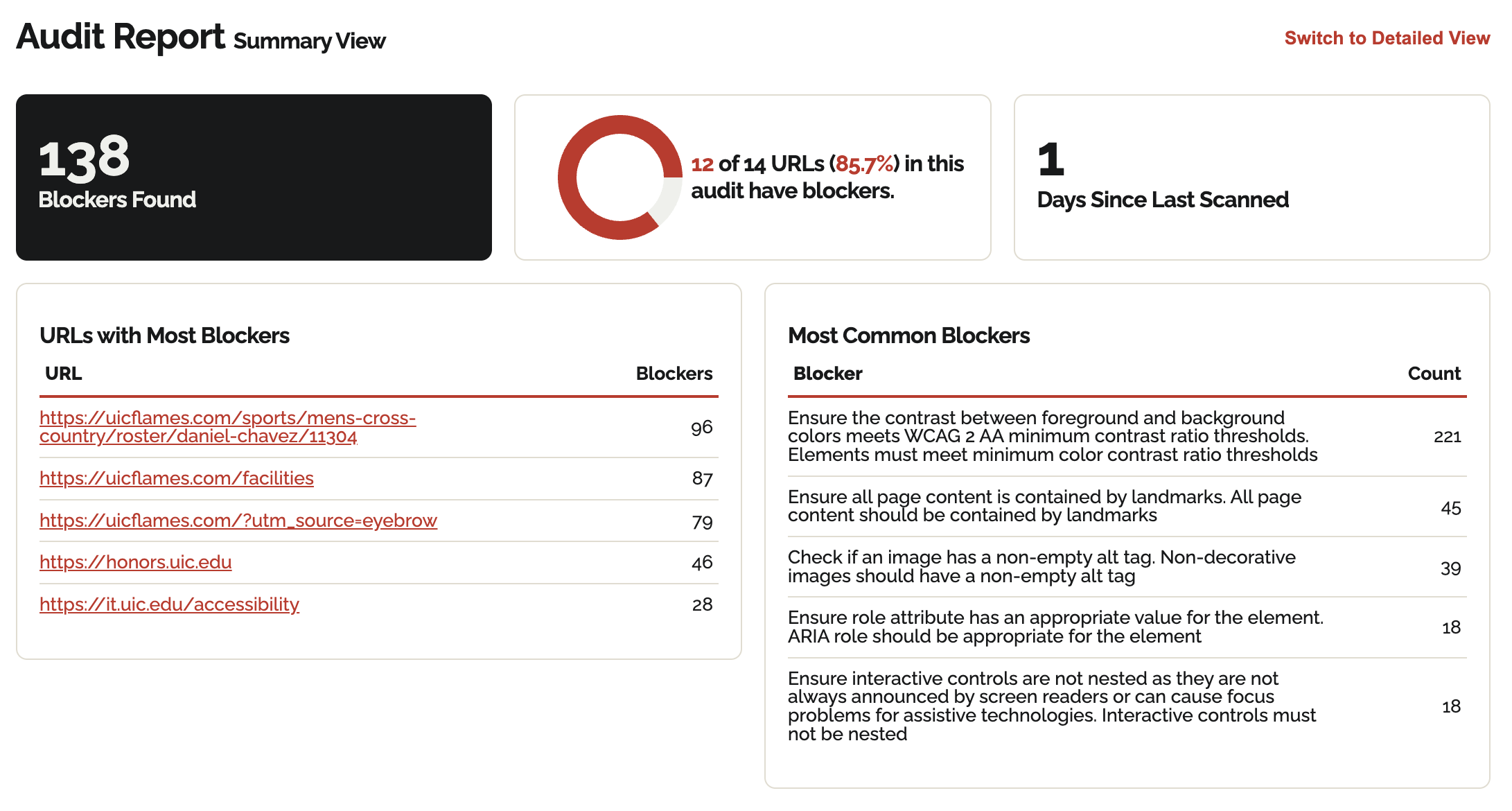
The bottom of the dashboard breaks down the "where" and "what" of your accessibility gaps.- Scan Status: View the date of the last check and the total number of URLs scanned.
- Blockers Found: The total number of blockers detected. This card also shows how that number has changed since your last scan (e.g., "12 more blockers since last scan") and how many days it's been since the last scan.
- Audit Health: Approximately what percent of the pages scanned contain blockers that need your attention, plus a breakdown of how many of those blockers were found on HTML pages versus PDF documents.
- Blockers per URL: The average number of blockers per page scanned, along with how that average has changed since your last scan.
- URLs with Most Blockers: Ranks your pages by the number of issues found. Each URL links to the Detailed View filtered to that page, and includes a separate icon to open the live page itself in a new tab. The list is paginated, so you can browse beyond just the top few.
- Most Common Blockers: Identifies the specific types of errors found and their frequency. Also paginated.
- Detailed view: Toggle to the Detailed View to access the granular data behind the summary. We will cover the specifics of this view in the following page.
- Recommendations: Toggle to the Recommendations view to see your blockers grouped into unique fixes, ranked by how many blockers each fix clears. Many blockers are the same piece of code repeated across a site (a header, footer, or template component), so this view is the fastest way to decide what to fix first. It is also covered on the following page.