Audit Report Detailed View
Edit on GitHubThis page is intended for Developers and Accessibility Specialists tasked with fixing specific code-level issues. Switch to the Audit Report detailed view for the "under-the-hood" companion to your summary view. While the summary tells you how many problems you have, this view tells a developer exactly where they are and how to fix them.
Filtering & Search:
The Search by URL field stays visible at the top of the page. The rest of the filters are tucked behind a Show Advanced Filter Options toggle to keep the page uncluttered — click it to reveal them.- Filter by Status: Choose between Active issues (currently live on the site), Ignored issues (manually hidden), and All recorded issues. Each option shows a live count of matching blockers.
- Use the Filter by Accessibility Standard or Filter by Rules dropdowns to narrow the list by type (e.g., a specific WCAG success criterion, or a rule category like contrast or ARIA roles).
💡Tip: Use the Accessibility Standard filter to check if your content meets a specific compliance level. Equalify uses AxeCore for web and Vera for PDF rulesets — see those for full technical details. The dropdown groups options by standard, with plain-language labels rather than raw codes:
- WCAG: Broad conformance levels (e.g., "WCAG 2.1 Level AA") as well as individual success criteria (e.g., "WCAG 1.4.3 Contrast (Minimum)").
- Section 508, EN 301 549, and RGAA: Regional/regulatory standards, shown with their specific clause or paragraph.
- Trusted Tester: DHS Trusted Tester test references.
Only standards that actually apply to your data appear in the list.
- WCAG: Broad conformance levels (e.g., "WCAG 2.1 Level AA") as well as individual success criteria (e.g., "WCAG 1.4.3 Contrast (Minimum)").
- Section 508, EN 301 549, and RGAA: Regional/regulatory standards, shown with their specific clause or paragraph.
- Trusted Tester: DHS Trusted Tester test references.
Only standards that actually apply to your data appear in the list.
- Content Type filter: Quickly switch between issues found in HTML (web) versus those found within PDF documents, or view all. Each option shows a live count of matching blockers.
- Show/hide columns: Click Columns to tailor the view to show or hide audit details.
- Download the report as a CSV file, which is helpful for teams that want to manage issues in issue-tracking software (e.g., JIRA, Rally). Click Download to choose from:
- Export filtered blockers: Only the blockers matching your current filters and search.
- Export all blockers: Every blocker in the audit, ignoring any filters currently applied.
- Export PDF Source Page URLs: A separate export listing the HTML pages that link out to PDF documents, alongside those PDF URLs — useful for tracking down where a flagged PDF is referenced from. Only available when viewing your own audits, not on shared report links.

Detailed Issue List
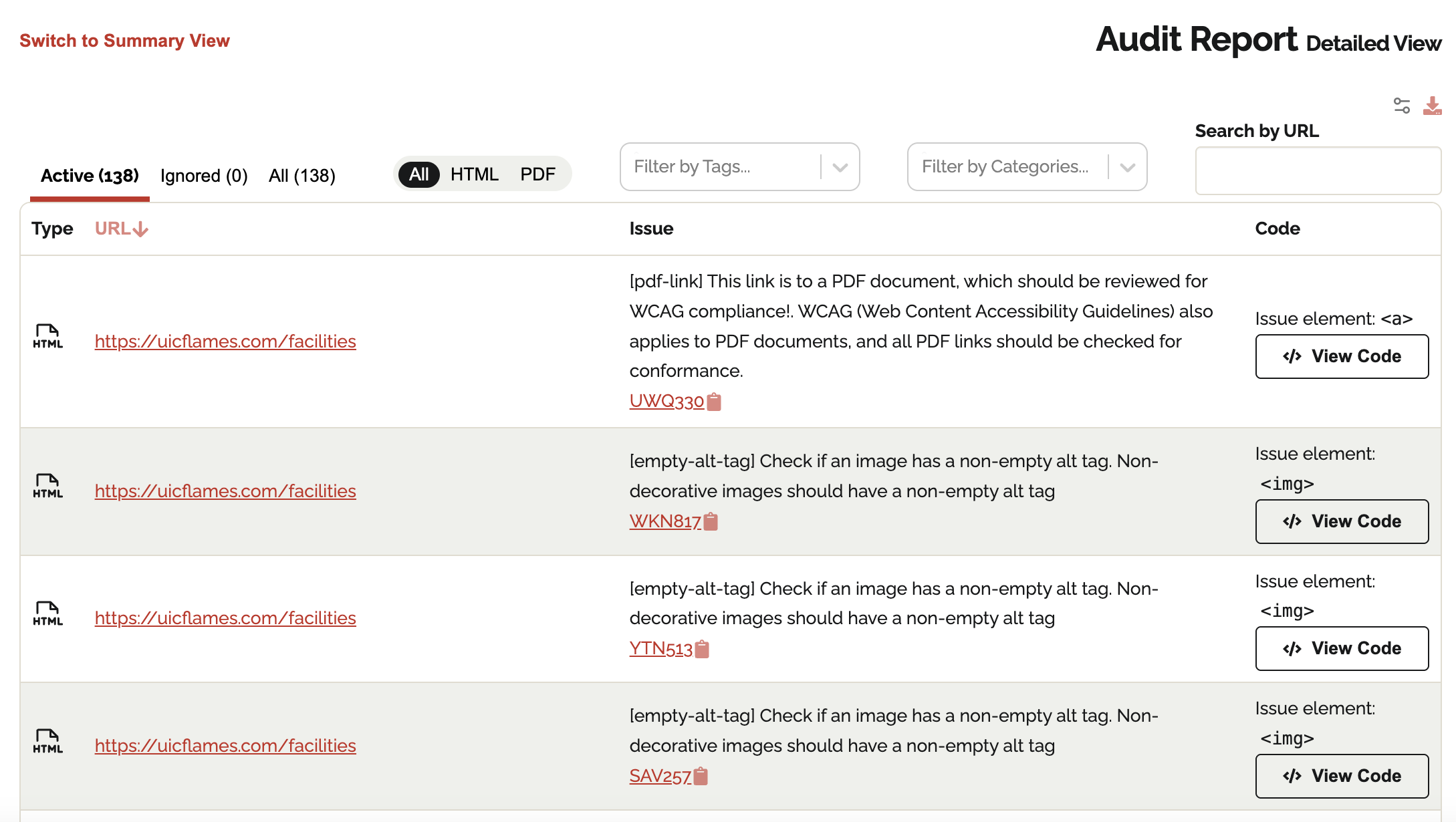
This central table lists every accessibility violation, including the specific URL where it occurred and a plain-English explanation of the WCAG (Web Content Accessibility Guidelines) rule violated. Important Details for Developers: To move from identifying a problem to fixing it, focus on these three technical components provided in each row:- Description: High-level description of what the problem is.
- ID: Each error is assigned a unique code (e.g., UWQ330 or WKN817), shown in its own column right after Type. These serve as reference points for tracking fixes across different scans. You can open the issue or copy its link.
- Issue Detail page: When you click on the ID, Equalify provides a deep dive into the issue to help you resolve it quickly.
- Appears on: What page or PDF does this blocker appear on.
- Audit: What audit did this arise from.
- Error: High-level description of what the issue is.
- Rule: What rule does this blocker fall under.
- Accessibility Standards: What accessibility standards (WCAG, Section 508, EN 301 549, RGAA, Trusted Tester) this blocker relates to, if any.
- Code Snippet: Equalify extracts the exact HTML block causing the flag.
⚠️Important: For PDFs: Equalify can not point you to the specific page where an issue occurs, as it cannot identify the exact snippet.
- Code
- View Code button: Clicking View Code opens a snippet of the page's source code, highlighting the exact line to modify.
- Issue Element: This identifies the specific HTML element affected by the issue.
- Rule: What rule does this blocker fall under.
- Accessibility Standards: What accessibility standards this blocker relates to, if any.
- Ignore: Toggle an issue on/off for the report. Ignoring a blocker also ignores every identical copy of it on other pages in the audit (the same flagged code in a shared header, for example), and the ignore carries forward to future scans. Reactivating it restores all copies.
Viewing Past Scans
Click Scan History (next to Columns and Download) to see the blockers a previous scan found. The list shows each finished scan's date, time, and blocker count, with the most recent scan at the top.While you're viewing a past scan:
- A yellow banner at the top of the table reads "Viewing data as of MM/DD/YYYY". Click Return to most recent scan in the banner to go back.
- Search, filters, and Download all work on that scan's blockers. A CSV download only includes blockers from that scan.
- The Summary View and Recommendations tabs are greyed out, because they only cover the most recent scan.
- The ID column is greyed out and doesn't link to Issue Detail pages. Those pages are only available for blockers in the most recent scan.
- The Ignore column is read-only. It shows whether each blocker is ignored under your audit's current ignore settings.
💡Tip: The page address includes the scan you're viewing, so you can bookmark or share a link to a specific past scan.
AI-Generated Blocker Summary
When you open an Issue Detail page, Equalify displays an AI-generated Blocker Summary below the issue details. This summary is intended to help you understand and fix the issue without needing to look up the WCAG rule yourself.The summary includes:
- A plain-language explanation of what the accessibility issue is and why it matters to users.
- Step-by-step instructions for fixing the issue in your code.
⚠️Important: This summary is generated by an AI and may contain errors. Always verify the suggested fix against your site's specific implementation before applying it.
Actions available on the summary:
- Reload summary: Regenerates the summary from scratch. Use this if the summary seems incorrect or you want a fresh response.
- Flag a problem with this summary: If the summary contains inaccurate or unhelpful content, use this to report it. This helps improve the quality of future summaries.
💡Tip: If no summary appears, click "Reload summary" to generate one. Summaries are cached after the first load, so subsequent visits to the same issue will be faster.
Recommendations View
This view is intended for Developers and Project Leads deciding what to fix first. Many blockers are the same piece of code showing up on many pages: a header, footer, navigation menu, or another template component. Equalify groups identical blockers together so that each row in this view is one fix. Fixing that one spot in your template clears every copy across the site. Switch to it using the Recommendations toggle at the top of the Audit Report, next to Summary View and Detailed View.Repeated vs. One-off Blockers
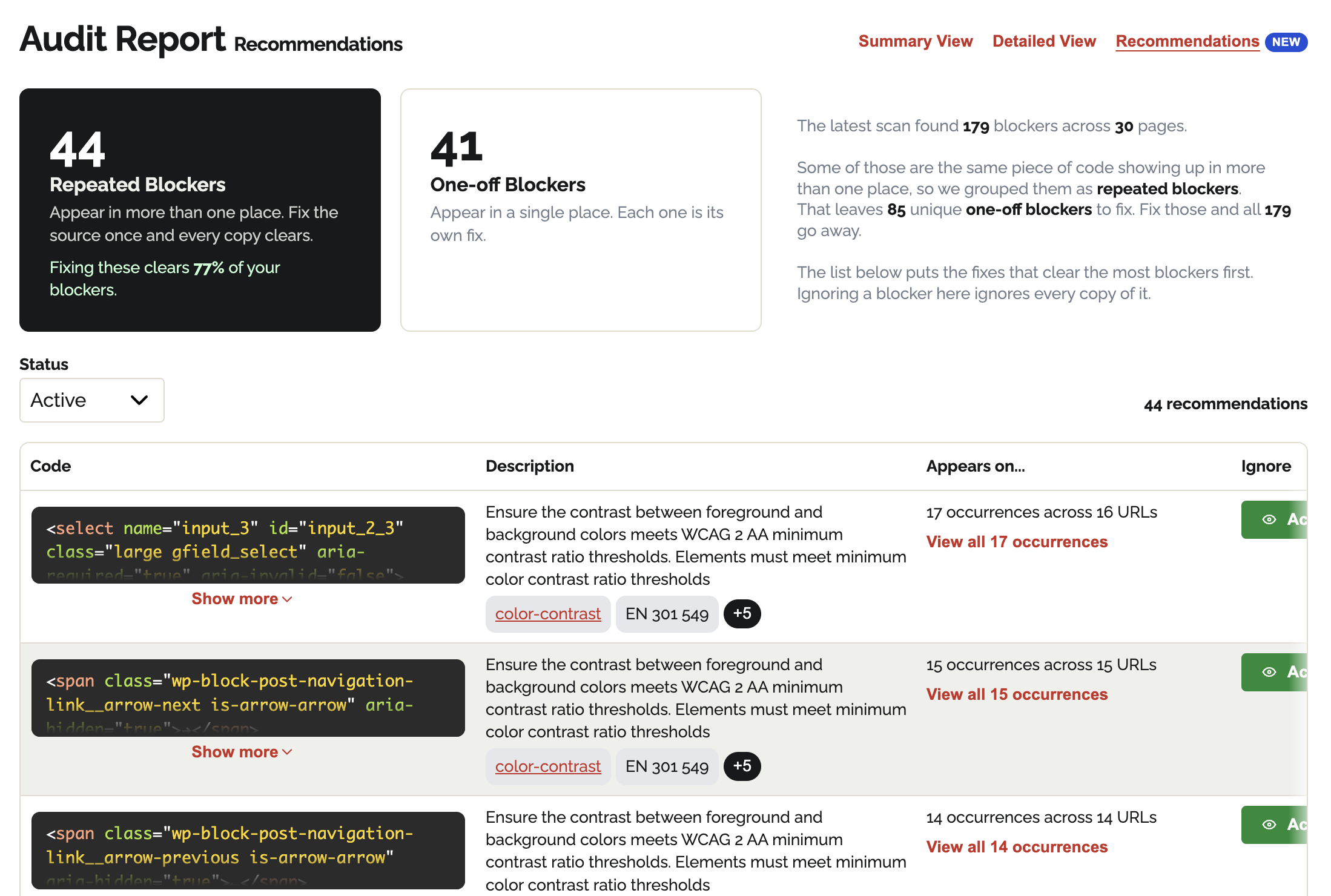
Two cards at the top of the view double as filters. Click one to change which blockers appear in the list below it:- Repeated Blockers: Blockers that appear in more than one place. This is the default, because these are the highest-value fixes. The card also tells you how much of your total blocker count would clear if you fixed only these (for example, "Fixing these clears 14% of your blockers").
- One-off Blockers: Blockers that appear in a single place. Each one is its own fix.
Filtering
- Status: Choose between Active, Ignored, and All, the same as in the Detailed View. The counts on the two cards update to match, and the number of matching recommendations is shown to the right of the filter.
Recommendation List
Each row is one unique blocker. Rows are ranked so the fixes that clear the most blockers come first.- Code: The exact HTML block that was flagged, with syntax highlighting. Long snippets are collapsed; click Show more to expand one.
- Description: A plain-language explanation of the problem, the Rule it falls under (click it to open the Detailed View filtered to that rule), and the accessibility standards it relates to. If more standards apply than fit on the row, a "+N" indicator reveals the rest.
- Appears on…: How many times the blocker occurs and across how many URLs. For a blocker found in one place, the page URL is linked directly. For a repeated blocker, click View all N occurrences to open a panel listing every URL, with pagination and a Copy as CSV button so you can paste the list into a ticket or spreadsheet.
⚠️Important: Occurrences and URLs can differ. If the same blocker appears twice on one page, that counts as two occurrences on one URL.
- Ignore: Works the same as in the Detailed View. Ignoring a recommendation ignores every copy of it across all pages, and reactivating it restores all of them.
💡Tip: Recommendations and the Detailed View are two ways of looking at the same scan. Use Recommendations to decide what to fix, and the Detailed View to find each specific page that needs it.